

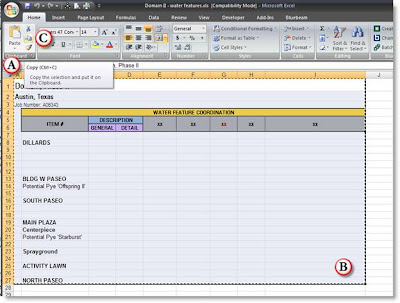
A. Open the Spreadsheet
B. Select the area to copy
C. Copy the Selection (CTRL+C)
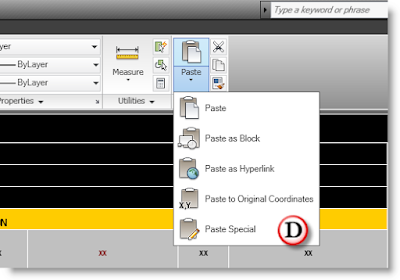
D. Open the CAD Drawing and to the Pulldown Edit->Paste Special (or Ribbon Home->Clipboard->Paste->Paste Special)
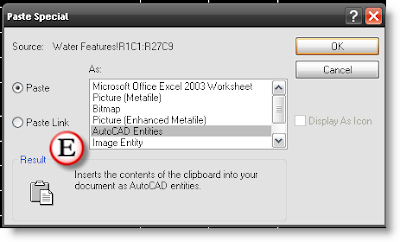
E. In the Paste Special Dialog box select "AutoCAD Entities".
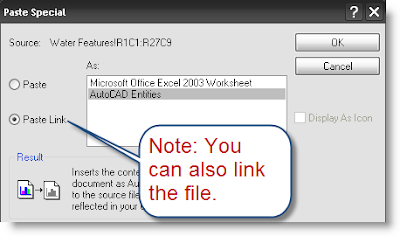
Note: you can select "Paste Link" and then select AutoCAD Entities if you want to link the file.
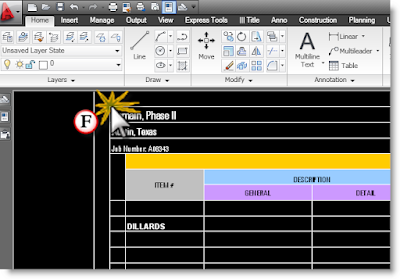
F. Select the Insert point, then the excel spread sheet will become a table. You can then create a table style for your Excel documents that will customize the look with the table style or you can leave the table with the same formatting as the Excel spreadsheet.
FAQ'S ABOUT INSERTING EXCEL SPREADSHEETS
1. Can I change the look of the spreadsheet?
- Yes you can change the look of the spreadsheet by using the "TABLESTYLE" command. This will bring up a dialog to create a table style that can be applied to the excel spreadsheet. Otherwise the table will have all the same properties as the excel spreadsheet including color, fonts, background fill, and cell lines.
2. What does the padlock and chain link icon mean when I am working with a table?
- The padlock means that the spreadsheet is locked and to edit the data in the spreadsheet you will need to update the data in the excel version and it will be updated in the AutoCAD table version.
- The chain link means that it is linked to a file. When a file is linked, the table is locked. However, you can lock a table without it being linked.
3. What should I name my Tables?
- They should start with "TBG-" and then a description. This will help differentiate your table with other consultant's tables.
4. How do I know when there is an update for my table and how do I update it?
- There will be a link in the lower right hand corner of drawing. If you right click on that link there will be an option to "Update Links". This will update all linked data in your drawing. Right now there is no way to update individual linked objects.
5. What is a quick way to edit the linked spreadsheet without having to browse to the file?
- Go to the reference palette and right click on the spreadsheet. There should be an option to open the linked file. (When finished you can also right click and update links as well).


