Relative paths are partially specified folder paths for reference files (DWG, JPG, TIF, DWF, DGN, and PDF's in AutoCAD 2010) that assume drive letter of your current drawing and the common folders (or path) of the current drawing.
Relative paths enable you to:1. To move a set of drawings from your DD or SD folder set to the CD folder set without having to remap images, drawings, DWF’s, or DGN’s
2. To rename a project folder that uses the same folder structure (if they are already relative xrefs).
3. Allows consultants to keep the same folder structure (or close to it) and find our drawings.
4. Also, makes archiving drawings easier, because the links to the drawing or image paths will not be lost.
All reference files have 2 different paths:1. "Saved" path
Tells AutoCAD what the path type is. (Relative, Full, or No Path)
2. "Found At" path (is editable and can change the Saved Path)
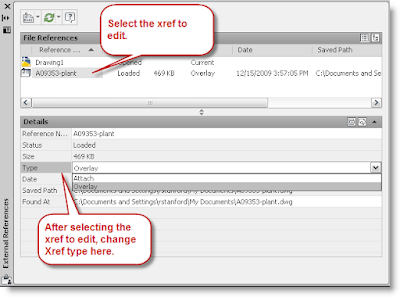
Is an editable display of where AutoCAD is finding the drawing based on the path type just by clicking on the path. Notice how the two paths differ below.
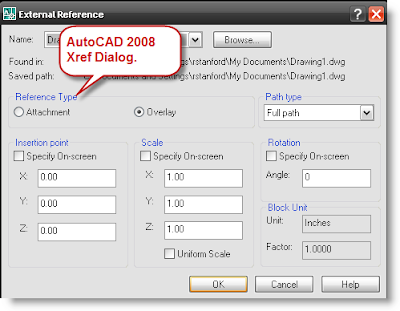
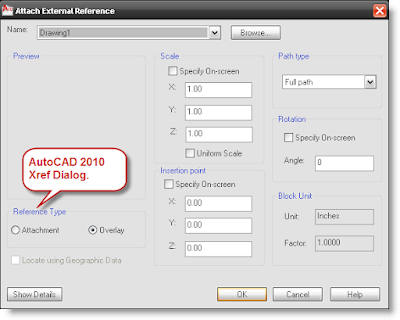
The 3 ways to make a reference file path a relative path:1. When inserting the reference file, choose the relative path option. The current drawings must be saved to use this option.
2. Run the Xref Repath command or "XRP" to change existing reference file paths to relative paths. (Click on the images to enlarge)
3. Manually change the “Saved path” by changing the “Found At" path.
How do I manually change my reference path and what do all the symbols mean?1. Host drawing path (or in other words the drawing you have open for this example is:
"Z:\TBG\Bridgelands\Parkway Planting (A06353)\04 CD\Work\A06353-plant.dwg"2. In this example, all changes will be made to the xref (or reference file) after it has been inserted into the drawing. These changes will be made in the "Found At" location of the xref dialog box. Once "Enter" is pressed after changing the path, the "Saved Path" location will change to a relative path.
When Folders Are The Same:3. ".\" (1 period and a backslash) Means the image or drawing is in the same directory as the host drawing listed above, or in other words, the directory path is exactly the same.
Host:
Z:\TBG\Bridgelands\Parkway Planting (A06353)\04 CD\Work\A06353-plant.dwgReference:
Z:\TBG\Bridgelands\Parkway Planting (A06353)\04 CD\Work\A06353-site.dwgThat will then leave you no remaining folders. Remember the site file is referenced into the planting file and that is one you are changing. Because these are in the same folder there will only be one (1) period before the backslash. This is the only different one. All other examples follow the pattern below.
"
.\A06353-site.dwg
When Folders Are Not The Same:4. "..\" (2 periods and a backslash) Means the image or drawing is in the same directory as the host drawing but one folder was different. You can add as many
"..\" as needed like this
"..\..\..\" .
Shown below is the host drawing path and the reference path. What a relative path will do is remove the common path shown in light gray below:
Host:
Z:\TBG\Bridgelands\Parkway Planting (A06353)\04 CD\Work\A06353-plant.dwgReference:
Z:\TBG\Bridgelands\Parkway Planting (A06353)\04 CD\Xref\A06353-civil.dwgThat will then leave you with the folders in Red. You will then replace each folder with a
"..\" Remember the civil file is referenced into the planting file and that is one you are changing.
Work\A06353-Planiting.dwg
"
Xref\A06353-civil.dwg" will become "
..\A06353-civil.dwg"
Now you have all the information you need to automatically or manually change your reference files.