Tuesday, February 16, 2010

Xrefs - Overlay vs. Attachment

The Difference Between "Overlay" and "Attachment"

"Overlay"
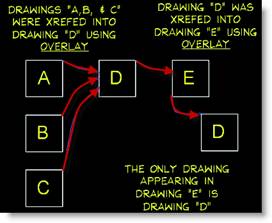
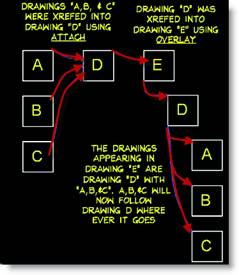
Using the "Overlay" method means that the referenced drawing you are inserting will be viewed in the current drawing only. It will not follow the current drawing to the next drawing. It is the simplest form of reference file and as a result it is the most used method of inserting a xref into a drawing. This is a nice method to use when handling a drawing or two from a consultant or in house drawings. Notice in the example below that Drawings A, B, and C are inserted using the "Overlay" method into drawing D. Then D is inserted into drawing E and notice that A, B, and C do not follow drawing D when inserted into drawing E.


"Attachment"
Using the "Attachment" method means that the drawing you are inserting can be viewed the current drawing and all other drawings you insert the current drawing into. This a good method when you have complex drawings that have many other referenced files. A good example is an architect's drawing that has three or more drawings referenced into it (like difference floors). Notice in the example below that Drawings A, B, and C are "Attached" into drawing D. Then D is inserted into drawing E (also like above), but he difference is that A, B, and C now follow drawing D when inserted into drawing E.


How Can I Make My External References Overlay or Attached?

Method #1
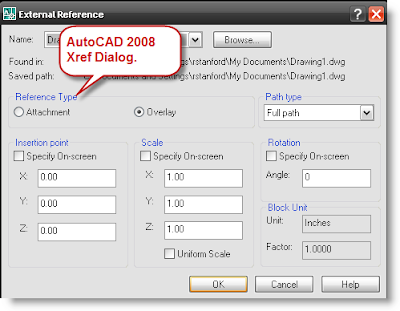
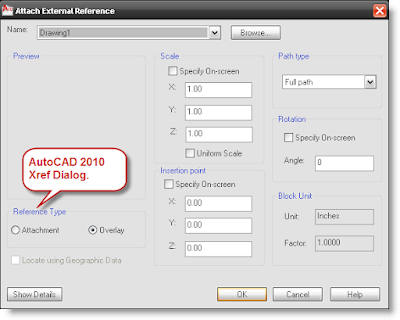
Choose either "Overlay" or "Attach" from the xref dialog box when inserting the drawing. (As shown below for AutoCAD 2008 and 2010). The option will lie in the "Reference Type" frame.


Method #2
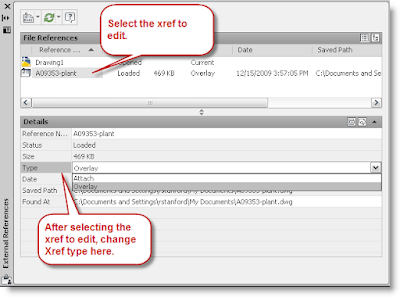
Use the xref palette to change "Type" of xref (shown below) if they are already inserted into your drawing. You will not be able to change nested xrefs. This option will be grayed out if this is the case.
Wednesday, February 3, 2010

How To Import Excel Spreadsheets Into AutoCAD

I have had a lot of questions lately about how to import excel spreadsheets into an AutoCAD drawing. Here is the method that Autodesk suggests. They highly discourage copying and pasting as an OLE object, and using the insert OLE object due to it's inconsistencies.


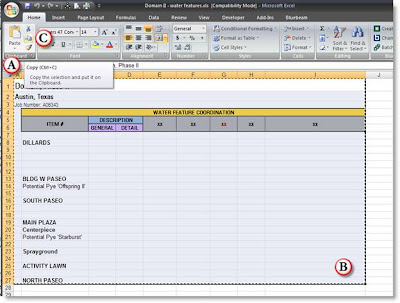
A. Open the Spreadsheet
B. Select the area to copy
C. Copy the Selection (CTRL+C)


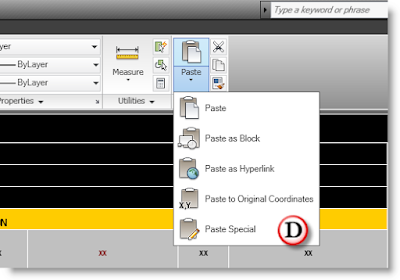
D. Open the CAD Drawing and to the Pulldown Edit->Paste Special (or Ribbon Home->Clipboard->Paste->Paste Special)


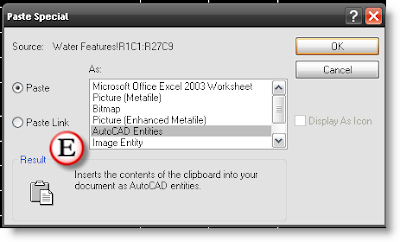
E. In the Paste Special Dialog box select "AutoCAD Entities".


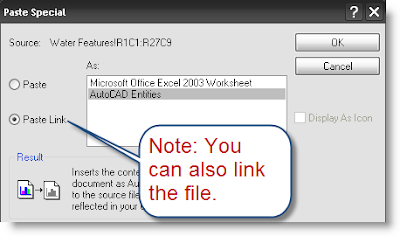
Note: you can select "Paste Link" and then select AutoCAD Entities if you want to link the file.


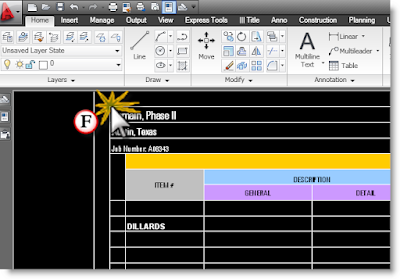
F. Select the Insert point, then the excel spread sheet will become a table. You can then create a table style for your Excel documents that will customize the look with the table style or you can leave the table with the same formatting as the Excel spreadsheet.

FAQ'S ABOUT INSERTING EXCEL SPREADSHEETS

1. Can I change the look of the spreadsheet?
- Yes you can change the look of the spreadsheet by using the "TABLESTYLE" command. This will bring up a dialog to create a table style that can be applied to the excel spreadsheet. Otherwise the table will have all the same properties as the excel spreadsheet including color, fonts, background fill, and cell lines.

2. What does the padlock and chain link icon mean when I am working with a table?
- The padlock means that the spreadsheet is locked and to edit the data in the spreadsheet you will need to update the data in the excel version and it will be updated in the AutoCAD table version.
- The chain link means that it is linked to a file. When a file is linked, the table is locked. However, you can lock a table without it being linked.

3. What should I name my Tables?
- They should start with "TBG-" and then a description. This will help differentiate your table with other consultant's tables.

4. How do I know when there is an update for my table and how do I update it?
- There will be a link in the lower right hand corner of drawing. If you right click on that link there will be an option to "Update Links". This will update all linked data in your drawing. Right now there is no way to update individual linked objects.

5. What is a quick way to edit the linked spreadsheet without having to browse to the file?
- Go to the reference palette and right click on the spreadsheet. There should be an option to open the linked file. (When finished you can also right click and update links as well).

Tuesday, February 2, 2010

Color and Linetype Standards

Linetype Standards
We don't have many office standards governing linetypes, just three really.

1. All Colors for objects (except for details) should be "ByLayer".
1. All Linetypes for objects (except for details) should be "ByLayer".
2. All Linetypes (except for details) should have a scale of 1. (Variable "celtscale" or current element linetype scale.)

That's not too hard.

Why can I not match properties to a linetype?
There are a few reasons:
1.) Either the MatchProp settings do not include Linetype
2.) We do not have that linetype in our library and will not match properties to it.

Why are details exempt from being ByLayer?
The main reason that object colors and linetypes are exempt from being ByLayer in details is because details are not externally referenced into other types of drawings. Details are drawn as what you see is what you get. 

Why can I not see my linetype correctly?
There can be several reasons.
1.) You are drawing a line while CELTSCALE =1 the properties palette and looking at the linetype scale.
2.) Make sure the linetype is ByLayer..
3.) Make sure it is a linetype we have. Just because a linetype appears in a drawing does not mean we have it.
4.) Choose a smaller or larger linetype, and do not change the LTSCALE.
6.) Use the layer dialog and make sure it is assigned the correct linetype.

Why will the colors not stay when I apply them to an xref?
The variable "visretain" is set to 0. It needs to be set to 1.

Why can I not change the color of the object in my xref using the layer dialog?
Because the object in the referenced drawing is not set to ByLayer?

Two Minute Training Blog Updates

There have been a few changes to the Two Minute Training Blog.

- The labels have been reorganized according to topic such as, Program Type, How To Articles, Commands, and Standards.

- This will end up being our CAD Manual organized by topic and searchable.

- Now, would be a good time to brush up and refresh your knowledge of the office standards as these are published.

- If you would like to know more about a topic, problem, need a standard, or don't like a standard (maybe it's something we need to revisit) please send your CAD Manger an email or just leave a comment on the blog. (They are moderated so they do not appear immediately).

Multiple e-mail issue:
Sorry for the technical issue contributing to the multiple e-mails that was not meant to happen.

Monday, February 1, 2010

Using Make Single Project Directory - "SPJ"

Where to find the SPJ command:
1. Pulldown menu: File->New Single Project
2. Ribbon menu: Title->New Projects->Single Project
3. Command Line: "SPJ"

What does New Single Project do exactly?
- Creates the primary folder with the project name and the job number.
- Creates all the sub-folders that are needed for a project
- Creates all the blank CAD drawings with the correct job numbers
- Creates the sheet set needed for the project with the job number.
- Will include folder updates that have been approved by the CAD Steering Committee.

FAQ's
Why do we use the SPJ command?
- Because there is a lot to remember when making a new project folder, the SPJ command will create all the necessary folders and start up files you will need for the project.

Why do we have to use AutoCAD to make the new project directory? I don't start a project using AutoCAD.
- Right now, this is the only way to ask for input and apply that to information to new project folders, files, and other information.

Why can't I just make a folder to copy over and over again for new projects?
- We could do it that way, but what the SPJ command does for you is rename all the folders and files based that project number. This saves you a lot of time.

What if someone made the job folder, but didn't include all right folders and files information?
- Run SPJ and use the exact same project name. It will create the correct folder structure and will not overwrite or delete existing information. This will also give you all your standard folder and file names with the job number.

What if the project does not have a job number?

- Every project should have a job number. If the folder does not have the project number and has work in it, then when it gets a job number add the job number to the folder and repath all the linked files. The sooner you do this the better.

Tuesday, January 19, 2010

FTP Sites and Internet Explorer

I will show you how to change the view from "Internet Explorer" to a "Windows Explorer" view. I wanted to give you a couple of options for logging on to FTP sites.

Option #1 - Using Windows Explorer Instead of Internet Explorer (Preferred Option)


A. Open "Windows Explorer" first  (not Internet Explorer). You can access "Windows Explorer" by 1.) Right Clicking on "My Computer" and selecting "Explore"; or 2.) pressing the "Windows Key"+"E" simultaneously.

B. Type in the FTP address in the address bar. (example ftp://192.168.0.251/)

C. This will open the FTP log on screen.

D. After you select "Open FTP Site in Windows Explorer" you will see the window change to the "Windows Explorer" format with the FTP icon in the address bar along with the FTP log on Screen.

E. Type in the the same "User name" and "Password" that you used before. This is the SECOND log on.

F. Do not...check the "Save Password". This will save you a lot of headaches later on because you may want to log on to other FTP sites later.

G. Click "Log On".

Option #2 - Using Internet Explorer


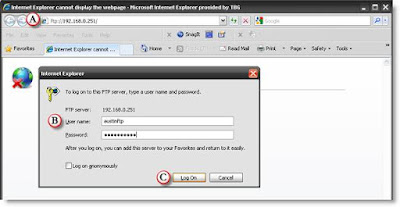
A. Log on to the FTP site by entering the FTP address (for this example I will use "ftp://192.168.0.251/ which is our local FTP address")

B. Enter the "User name" and "Password" of the FTP site. (In this case, the local FTP user name and password are provided on theHub.)

C. Click "Log On". This is the FIRST log on and takes you to the "Internet Explorer FTP View".


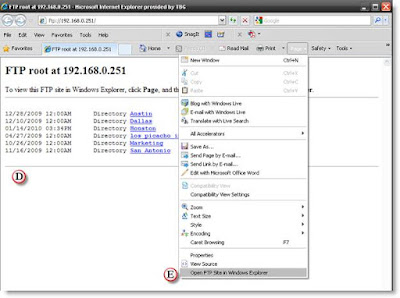
D. This Internet Explorer view will look a lot like a web page with links to the folders.

E. To get the "Windows Explorer" view click on the "Page" pull down menu and select "Open FTP Site in Windows Explorer". You will only see this menu option when you are viewing an FTP site.


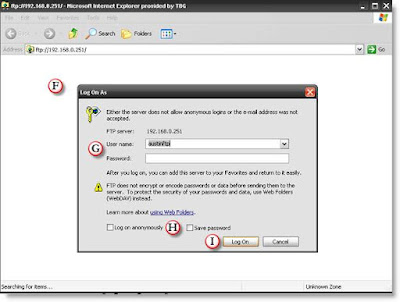
F. After you select "Open FTP Site in Windows Explorer" you will see the window change to the "Windows Explorer" format with the FTP icon in the address bar along with the FTP log on Screen.

G. Type in the the same "User name" and "Password" that you used before. This is the SECOND log on.

H. Do not...check the "Save Password". This will save you a lot of headaches later on because you may want to log on to other FTP sites later.

I. Click "Log On".

J. This will bring you to the "Windows Explorer" view of the FTP site.


A New Additional Setting for Internet Explorer 8 and 9
If you are still having issues getting onto someone's ftp site then try changing the Passive FTP setting as shown below.
A. Go to Tools->Internet Options->Advanced Tab

B. Scroll down until you find "Use Passive FTP (for firewall and DSL modem campatibility), and unselect that option if it is selected.

From TBG Two Minute Training

Thursday, October 8, 2009

Dynamic Drain Block

The Dynamic Drain block is meant to be used in our grading plans. It is a dynamic block that will allow you choose from 10 different drain symbols and 3 pipe connectors. It can be inserted from several places:
  1. Construction->Grading -Drains pulldown menu
  2. Keyboard command: "Drain"
  3. Toolpalette->Grading Tab
  4. Grading Toolbar (shown below)


THE DYNAMIC BLOCK PROPERTIES
Once the drain block has been inserted into the drawing, click on the block to reveal the light blue dynamic block grips.

A.) Rotation Grip - will allow you to rotate the drain as needed to be perpendicular to the pipe
B.) Visibility State - will allow you to pick which type of drain you would like to use
C.) Stretch to scale grip - will allow you to change how large the drain appears on the drawing.

THE ROTATION GRIP
Use the rotation grip to align the drain perpendicular to the pipe line. Once rotated to the pipe the pipe can be trimmed to the edges of the drain.

D.) Select the block to show the dynamic block grips
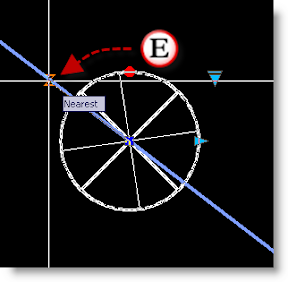
E.) Select the rotation grip to rotate the drain to the pipeline. This will align the drain perpendicular to the pipe. The nearest snap usually works best to snap to the pipe.

THE VISIBILITY STATE GRIP

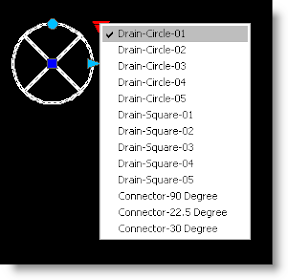
The visibility grip will allow you to choose which of the drain blocks or utilities to use. There are 10 drains and 3 connector blocks shown once the visibility grip has been clicked on (shown to the right). A list of all the visibility states and their blocks are shown below.
The connector blocks are meant to be used after the drain has been placed and rotated to be perpendicular to the pipe. Once, the drain has been placed and rotated, change the visibility state to one of the connectors. With the connector showing, draw a line snapping to the endpoint at the center and at the endpoint of one of the connectors. Change the visibility state back to the drain and use the extend command to extend the line to the next pipe.


THE STRETCH TO SCALE PROPERTY

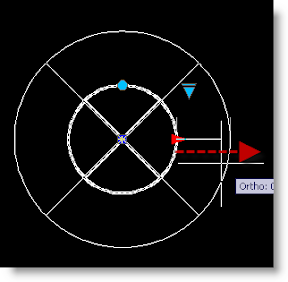
Use the stretch to scale property to change the size of the drain. This is not meant to be an accurate inch per inch drain, but a representation of where the drain is supposed to go on a large scale drawing. The drain can be scaled in 6" increments.