Friday, March 19, 2010

General File And Folder Name Practices

The following office file and folder naming standards have been developed over the years working with different programs. We have come to find out, through experience, that file names are handled differently by different types of programs and services. Because there are different server types, operating systems, ftp protocols, browsers, databases, and programs that handle file names differently, we have developed a set of office standards that have encompassed our computing needs.

TBG OFFICE FILE AND FOLDER NAMING STANDARDS
  • File and Folder names should be as small as possible (length and size)
  • File and folder names should be as meaningful as possible (e.g., instead of dsc00035.jpg, 2010-03-10_sitevisit.jpg)
  • File and folder names when using the date should be in a "yyyy-mm-dd" format (e.g., instead of 03102010, 2010-03-10)
  • File and folder names can only contain the symbols "(", ")", "-", and "_" when symbols are needed.
  • File and folder names should not contain any of these characters ! @ # $ % ^ & * = + ~ ` [ ] . , { } | \ " ; : < > ?
  • In case you missed it above NO PERIODS period!
  • Folders should not be created when a simple file name will do
  • File and folder names can and will be renamed, if they have periods and/or any of the symbols listed above in them.
SOME REASONS WHY THESE STANDARDS EXIST
There are reasons for all of these and granted you might not care too much about them, but these are some (not all) of the reasons why we have file naming standards the way we do.
  • Windows won't even allow some of these characters to be used.
  • Different databases handle symbols differently (e.g., Sepialine, Tape Backups, Exchange, IIS).
  • Access via dos commands can be tricky.
  • When searching for files "*" means any character, "#" means any number "@" means any alpha character "%" means space.
  • Microsoft's MSDN article on naming conventions say that a period should be used to separate the base file name from the extension. Program conflicts can arise when using periods, because different programs have differing rules when it comes to handling path names and file names.
  • Microsoft's MSDN article on file naming issues with Share Portal and Share Point Sever has problems with file names that have periods. There are some specific ways around this, but we would rather be safe then sorry.
  • The more folder names that exist in a file, the longer it take a programs to open.
  • Autodesk products have had previous problems with file and folder names that have brackets, symbols, and long names (previous versions had 32 character limit). They may accept these now, but keeping things short is still a good practice.

Tuesday, March 16, 2010

Posting To Basecamp Via E-mail

HOW TO SET UP A BASECAMP CONTACT TO POST VIA E-MAIL

Most people log into Basecamp and then post their files and messages. If you post a lot of files and messages to your Basecamp project, here is a quick way to post your files and messages without ever having to log into the Basecamp site. It will require a one time setup between Basecamp and Outlook for each Basecamp project.


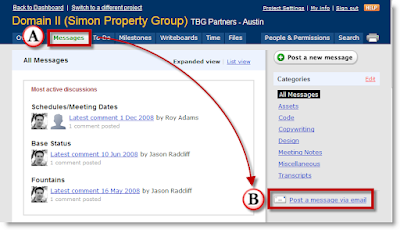
A.) Log into Basecamp, go to your project, and click on the "Messages" tab.
B.) Click on "Post a message via e-mail"


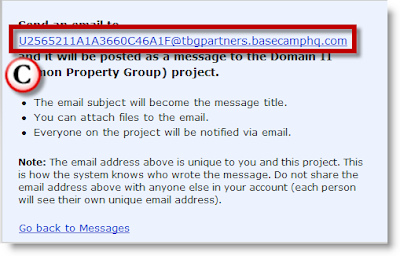
C.) This will bring up a screen with a long e-mail address. This is the Basecamp project e-mail address that you will need. Highlight and copy this e-mail address.


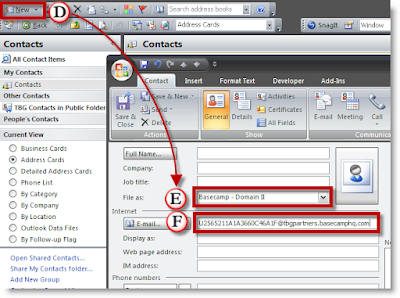
D.) Click on the "New Contact" button in Outlook.
(Optional -You can copy and paste that e-mail address into a new e-mail message. Although it may become hard to remember whose address is associated with the project after doing this a few times)
E.) Use a common contact name you can remember. I would suggest using a common name for all Basecamp users, such as, "Basecamp - Domain II", or "Basecamp - Congress Ave".
F.) Paste that e-mail address into the e-mail field and save the contact.


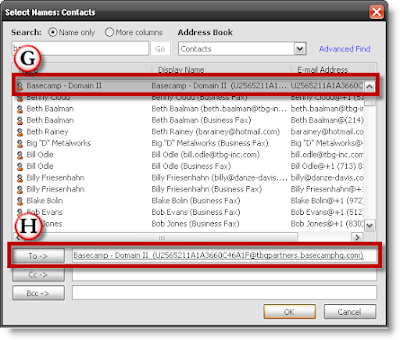
G.) Start a new e-mail in Outlook Click on the "To" button to bring up the contacts list. Find your "Basecamp" contact in your Outlook address book.
H.) Once selected, click the button "To", thus inserting the Basecamp email address.Type your message and send it. Next time you log into Basecamp you will find your items there and your project group will be notified of any new posts.

When posting messages via e-mail, the message will be posted in the "Messages" tab and any files attached will be placed int the "Files" tab.

Friday, March 5, 2010

Single Project - Presentations Folder

PRESENTATIONS FOLDER

The presentations folder can be found in the 03a SD, 03b DD, and 09 EG (Environmental Graphics) if those services are needed.

03a SD Folder03b DD Folder09 EG Folder (if Needed)

RENAMING THE PRESENTATIONS FOLDER

Each presentation has a date that needs to be changed when you start working on the presentation. It can either be the date you started working on it or the date of the presentation (if you know it) - and the "Name" of the presentation (ie. City Council, Image Boards).

Example of changing the presentation dates

HOW TO USE THE PRESENTATIONS SUB-FOLDERS

A description of the sub-folders needed to make the presentations are shown below:
  • "01- 3D-Work" contains any modeling items used for the presentation can also contain AutoCAD base drawings and/or any other type of Base informaiton
  • "02 Raw-Images" contains the collection of unedited images. It is almost a temp file for images. For instance scanned images, scanned bases, or images found on the internet. They are kept here just to have a copy of the original in case the editing process does not go as planned. * Note: if the image does not need editing or you are going to use it as is, you can place the images in the 03 Working-Images folder or directly in the links folder if you are going to use it as is.
  • "03 Working-Images" - Are the images that are being edited, layered, and/or modified for the presentation. When you have the image you want, copy it to the "Links" folder. If you are using InDesign, the links folder will contain all the links for the image board or presentation you are making. InDesign will automatically manage the images if they are in the folder directly below it or in the same folder as the document.
  • "04 Layouts" - contains all the sheet layouts from Freehand, InDesign, or other layout program. These layouts are placed directly in the 04 Layouts folder.
  • "04 Layouts - Links" - Contains all the links, files used, or files inserted for creating the layouts.
  • "05 Deliverables" - this folder contains the deliverable files that are made for the presentation that will be sent out. Sometimes this means the full size PDF documents, or handouts, marketing materials, or other type of files delivered to the client.

Single Project - Sheets Folder

SHEETS FOLDER AND IT'S SUB-FOLDERS

This folder is found in the 02 Permits, 03b DD, and 04 CD directories.

02 Permits03b DD04 CD

This folder contains the cad sheet layouts and no model space work is done in these drawings. All necessary files are xrefed from the "Work", "Xref", "00 Overall Xref", or "00 Overall Project Xref" (Multiple Projects Only) folders. The "04 CD" sheets folder has sub-folders in it called 01-LC, 02-LG, 03-LS, etc.. The number in front of the abbreviation represents the order in which it goes in a set of drawings and usually follows the order of construction. These numbers need to be reordered or renumbered to reflect changes made to the order of the set. The two at the bottom that have the "##" are not used on all projects. The "##" would be replaced with the proper placement in the set if used.


Sheet Folder Abbreviations
  • 01-LC = Landscape Cover Sheet
  • 02-LG = Landscape Grading
  • 03-LS = Landscape Sitework
  • 04-LP = Landscape Planting
  • 05-LI = Landscape Irrigation
  • 06-LL = Landscape Lighting
  • ##-LF = Landscape Fencing or Fountains
  • ##-LD = Landscape Demo
These sheet folders and sub-folders were designed for both large projects and small projects. They also have the added function of creating sub-sets in the AutoCAD Sheet Set Manager, which make the sheet set very organized. However, if you find that the sheets folders have one or two files in them and you do not want to search through these sheet folders, and you don't mind customizing your sheet sets, then the layout sheets can be placed directly in the "Sheets" folder. If you do place them directly into the sheets folder, please delete the extra folders. It's one less thing to search through.

WHAT GOES IN EACH OF THESE SHEETS?
LC = Landscape Cover Sheet - This series of drawings contains the cover Sheet, site map, vicinity map, table of contents, general notes, materials schedule, and other general information for the project.
To see an example of an LC Series drawings in PDF format (click here)

LG = Landscape Grading - This series of drawings contain proposed grading and topo, spot grades, drainage arrows, drains, swale lines, material callouts, and detail callouts if necessary.
To see an example of an LG Series drawings in PDF format (click here)

LS = Landscape Sitework - This series of drawings contain proposed sitework and hardscape items. Things like (but not limited to) pools, play equipment, boulders, furniture, walks, signs, sitework details, and paving patterns are just some typical things you will find in a sitework drawings.

To see an example of an LS Series drawings in PDF format (click here)
To see an example of an LS Series detail drawings in PDF format (click here)

LP = Landscape Planting - Planting drawings contain tree blocks, shrub blocks, groundcover hatches, plant notes, plant lists, and planting details.
To see an example of an LP Series drawings in PDF format (click here)

LI = Landscape Irrigation - Landscape irrigation drawings may contain spray heads, water meters, water valves, pipes, sleeves, and irrigation details.
To see an example of an LI Series drawings in PDF format (click here)

LL = Landscape Lighting - Landscape lighting drawings may contain light fixtures, wiring, and junction boxes. These drawings are usually schematic in nature and meant to show where the lighting was meant to go. To see the fixtures in plan view they will sometimes have to be larger than their actual size.

LD = Landscape Demo - Landscape demolition drawings are not used in every project. These drawings will usually show what items will be demolished and what items are staying. Because the demo drawings show what is being removed, the rest of the drawing should be faded back.

LF = Landscape Fencing or Fountain - These drawings are very specific in nature and where one is used the other usually isn't. A fencing plan is usually a community plan at a large scale that shows the layout and type of fencing that goes in a residential community project. These will sometimes go out before the rest of the construction documents, thus having their own category of drawings.

A fountain plan contains details, piping, and layouts for fountains. These usually require more detail than just a site plan. However, fountain details could be placed in another series in the sitework drawings instead of having their own category of LF (which is preferred).

To see an example of an LF (Fencing) Series drawings in PDF format (click here)
To see an example of an LF (Fountain) Series drawings in PDF format (click here)

WHAT IF THE NUMBERING SYSTEM I HAVE TO USE IS DIFFERENT?
If the numbering system used is different that our standard system, then the number in front of the folder will still reflect the order, but the abbreviations will be changed to match the different numbering system. In this example all the Landscape drawings were changed to "L" and the categories were by number. This is only to be used if we are not the prime consultant on the project.


WHAT ARE THE ACTUAL PAGE NUMBERS AND SHEET TABS NAMED?
The page numbers and layout tabs in the AutoCAD drawings follow this pattern:
[Abbreviation][space][Series Number][Period][one or two digit number]. For example..
Single Digit Number
LS 1.1, LP 1.5, LG 2.1, etc..
Double Digit Number (preferred because it matches the .dwg file name)
LS 1.01, LP 1.05, LG 2.11, etc..


The only drawing that has ".00" is the cover sheet ("LC 1.00"). All other drawings in the set will start with ".01" (i.e. LS 1.01)

To see another example of sheet numbering (click here)

HOW ARE THE DRAWING SHEET FILES NAMED?
The drawing sheet files do have a specific way to be named. They will follow this pattern:
[Job Number][Hyphen][Abbreviation][Series Number][Hyphen][Starting Page Number Double Digits]. Please do not use single digits here. Here are a few examples..
A10100-LS1-00.dwg, A10101-LC1-00.dwg, D11100-LS2-14.dwg


Notice that the sheet files do not have the ending sheet number. The sheet file .dwg name always contains the first sheet number. This leaves room for additions without changing the file names. Also notice that we do not use periods in the file names. Periods have been known to cause problems with file names, so we use hyphens instead.

WHAT IS A SERIES NUMBER?
A series number is the first number of the page number. For example, the page number "LS 2.10" the number "2" is the series number. Yet another example "LP 4.12", the number 4 is the series number. We use different series numbers to break up a set of drawings. Most of the time the 1 series are plans, and the 2 series are details, but that isn't always the case. Sometimes 1 series will be overall sheets, 2 series will be plans, and 3 series will be details. It's always important to have details on a separate series from the plans. If you add more plans, you don't want to change all your detail callouts. Several other categories have detail sheets, such as, Planting details, Irrigation details, and sometimes grading details (if very specific).

WHAT IS A .DST FILE AND WHY IS IT IN MY SHEETS FOLDER?
This is your sheet set file that contains all your sheet layouts.

Single Project - Cost Estimates Folder

COST ESTIMATES FOLDER

Cost Estimates folder can be found in the 02 Permits, 03a SD, 03b DD, 04CD, and 09 EG (Environmental Graphics if needed) of the single project folder (shown below).

02 Permit03a SD Folder03b DD Folder
04 CD Folder09 EG (Environmental Graphics)

Instead of keeping all cost estimates in one directory, they are kept in the phase of work they were created in. Keeping the cost estimates separated in the different phases will help us communicate and remember what was being estimated during the design and construction process. It will also help keep the previous estimates from being saved over by accident.

If you create drawings for the cost estimate you will want to put those drawings that you used for the take-offs with that cost estimate. It will save you a lot of time when looking for items.

WHERE DO I FIND THE COST ESTIMATE TEMPLATES?

You can find the cost estimate templates in a few of places.

1.) On the Intranet on the theHub
2.) You can find them in the Q:\Template\[city]\03 CD and look for the cost estimate templates
3.) Start a new file in excel and use the list of templates in the dialog

WHAT DO I NAME THE COST ESTIMATE FILES?

They should be named by the date [YYYY-MM-DD Format] and cost estimates.
(shown below)

Thursday, February 25, 2010

Why You Should Turn Off Your Computer At Night

1.) It's one of the easiest things you can do to be green and save energy. The power required to run all one billion (estimated) of the world's PCs for just one night is enough to power the Empire State Building inside and out for 30 years. (PC World)

2.) Turning your computer off gives your Random Access Memory (RAM) a chance to defragment and increases your computer's speed the next day. Sleep and Hibernate do not do this.

3.) It's good for your computer, because it gives the components a chance to cool down. This should decrease the wear and tear on the computer when they were turned off.

....and the fourth and final reason is

4.) You are supposed too, it's an office standard.